
Windows
WINDOW records are fully supported in the Screen Preview: drawn at their real screen position, resizable and movable with the mouse, and aware of WDWTITLE/WDWBORDER.
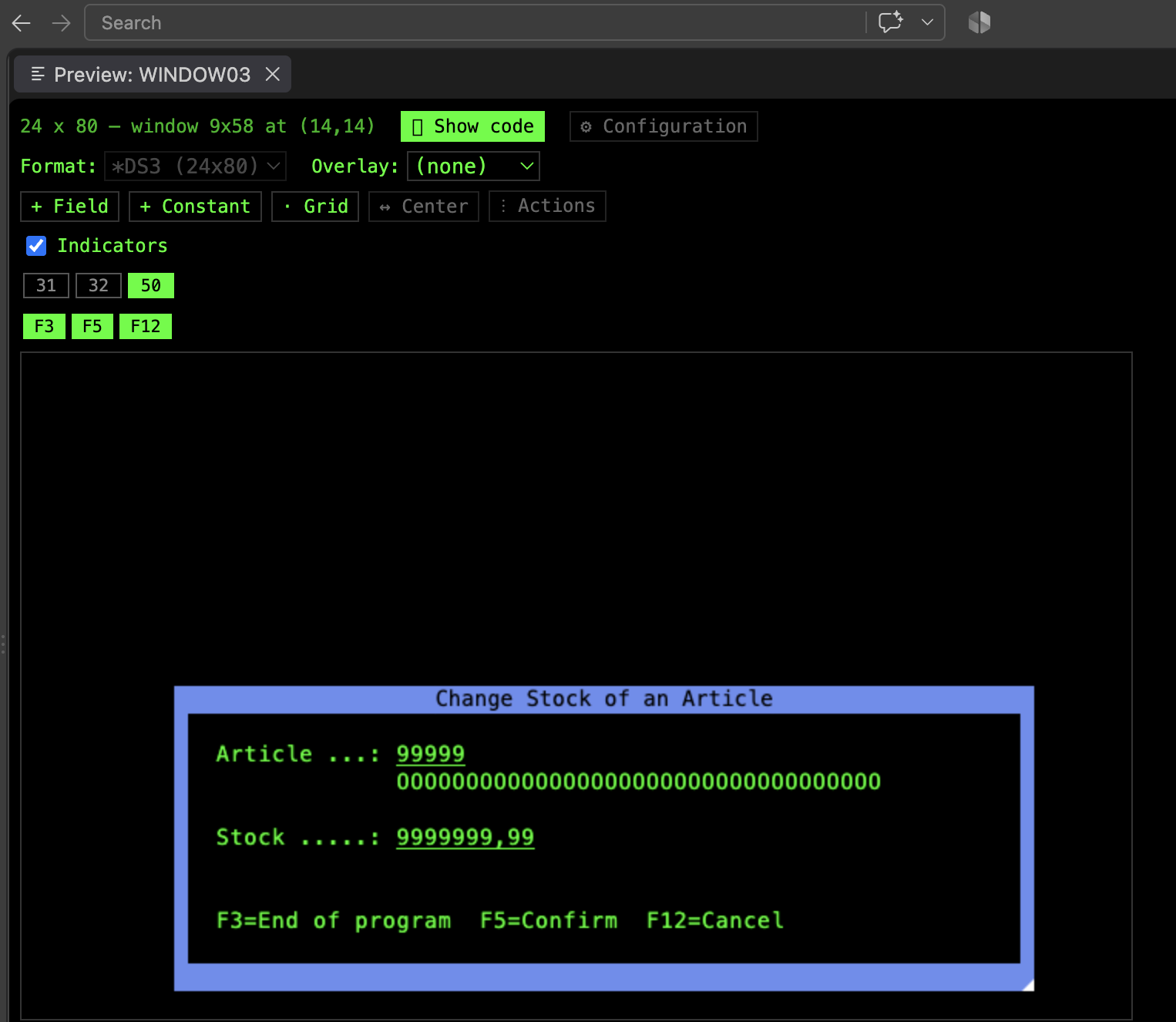
Resizing and moving
Section titled “Resizing and moving”- In the preview, drag a window’s border to resize it, or drag its body to move it.
- From the Schema Tree, right-click the window record and choose Change Window Size. This is aware of every display size the file declares (
*DS3/*DS4, …) and resizes all of them together. See Multiple Display Sizes.
- If the window has a
WDWTITLE, it’s shown in the preview. A window can have one title on the top border and another on the bottom border (*BOTTOM), and both are shown. When more than oneWDWTITLEtargets the same border, their parameters are combined, and the first one wins if a parameter is repeated. - Click a title directly in the preview to edit it, or right-click the record in the tree and choose Change Window Title. When the record declares more than one display size, the command targets the size currently being worked on. When the window has more than one title, the command edits the first
WDWTITLEin the source.
Centering and aligning
Section titled “Centering and aligning”Hovering a window in the preview reveals a one-click “center horizontally” icon, alongside its “⋮” actions menu — both shown only while hovering.
To place the window anywhere else on the screen, open the “⋮” menu and choose Align…. It first asks for the direction, and then where:
- Horizontally: Left, Center or Right.
- Vertically: Top, Center or Bottom.
The alignment the window already has is marked “current”. Only the window’s position on that axis changes: its size, and its position on the other axis, stay as they are. As with any other change to the window from the preview, only the display size currently being previewed is affected.
Alignment counts the window’s whole frame, not just its content: the border adds 1 row above and below the content, and 2 columns on each side. So Right puts the right border on the screen’s last column, Bottom puts the bottom border on its last row, and Center leaves the same space on both sides of the frame (when the space left over is odd, the extra row or column goes after the window). For example, with WINDOW(5 10 8 40) on a 24 x 80 screen:
| Alignment | Result |
|---|---|
| Left | WINDOW(5 1 8 40) |
| Center horizontally | WINDOW(5 19 8 40): 18 columns free on each side |
| Right | WINDOW(5 37 8 40) |
| Top | WINDOW(1 10 8 40) |
| Center vertically | WINDOW(8 10 8 40): 7 rows free above and below |
| Bottom | WINDOW(15 10 8 40) |
A window can’t start on row 1 and column 1 at the same time (STRSDA doesn’t allow it either). When an alignment would put it there, it’s moved one place along the direction you’re aligning: Left on a window at row 1 starts it at column 2, and Top on a window at column 1 starts it at row 2.
Shared windows
Section titled “Shared windows”Windows shared via WINDOW(record-name) — where one record references another record’s window definition instead of declaring its own — are supported and resolved to the real window they point to.
Error messages on a window
Section titled “Error messages on a window”An active ERRMSG() on a window shows on the window’s own reserved message line (its last content row) when the window doesn’t specify *NOMSGLIN, matching real DDS behavior — instead of always appearing at the bottom of the physical screen like a non-window record’s error message would.
Windows and subfiles
Section titled “Windows and subfiles”A subfile control (SFLCTL) record commonly shares a window with a separate “commands” record holding its function-key legend. See Add Commands Record and Subfiles.