Screen Preview
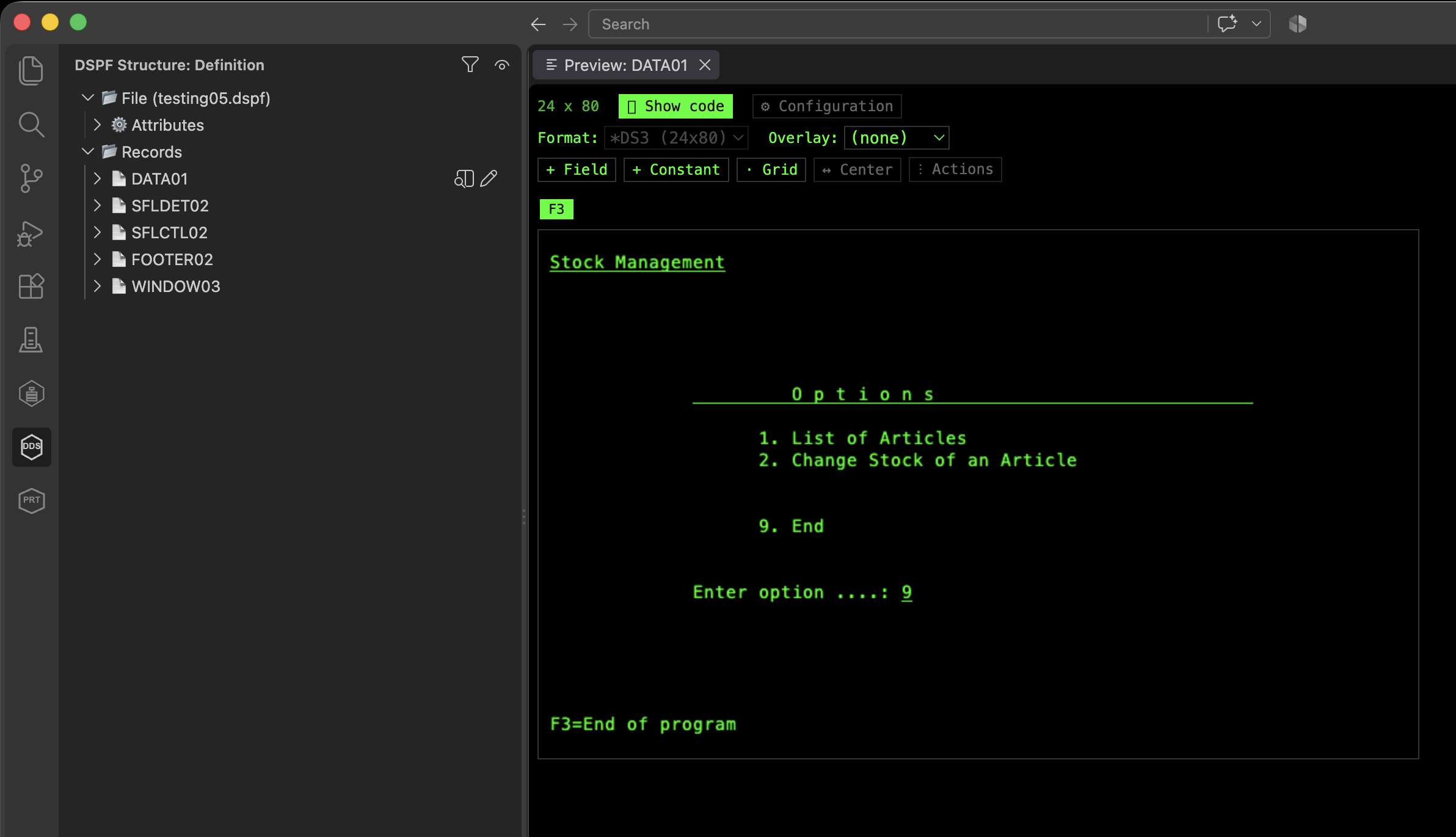
The Screen Preview is a visual, green-screen-style rendering of a record’s fields and constants — colors, DSPATR attributes, and placeholders for output/input/both fields — built to match how the field would actually appear under STRSDA.
Open it from the schema tree: right-click a record and choose Preview Screen Layout, or use the inline preview button next to the record. A Preview (DSPF-edit) CodeLens above each record’s R line in the DDS source opens it too — handy if another extension (e.g. IBM i Renderer) already puts its own “Preview” CodeLens on the same line, since that one can’t be redirected to DSPF-edit’s preview.
Toolbar
Section titled “Toolbar”A single, compact toolbar sits above the preview with:
- Display size / display format selector (see Multiple Display Sizes).
- Overlay list (see Overlay).
- Indicators toggle (see Simulating indicators).
- “+ Field” / “+ Constant” add buttons.
Repositioning by drag
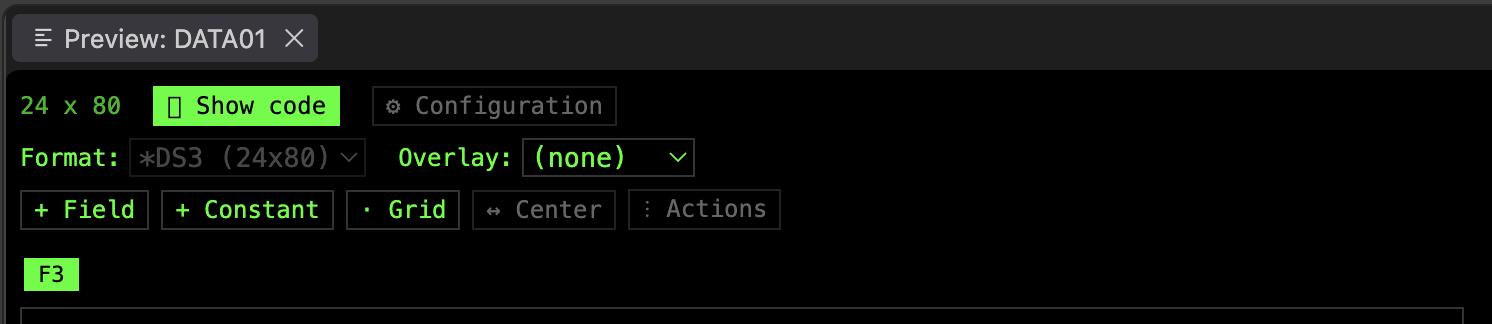
Section titled “Repositioning by drag”Drag any field or constant directly on the preview to reposition it. The change is written back to the DDS source immediately.
Adding elements from the preview
Section titled “Adding elements from the preview”Click + Field or + Constant, then click a point on the screen to place the new element there — using the same prompts as the tree’s Add field / Add constant commands (see Fields and Constants).
Multi-select and actions
Section titled “Multi-select and actions”Select a field or constant — or several, with Ctrl/Cmd+click — to get a ⋮ Actions menu:
- Add color/attribute, Copy, or Delete — applied to every selected element at once when multiple are selected.
- A single selected field or constant additionally gets Rename…/Edit Text…, Indicators…, and (for fields) Validity Checks…, Editing Keywords…, and Error Messages… — the same commands available from the tree’s context menu, so most of what you’d do from the tree is also reachable straight from the preview.
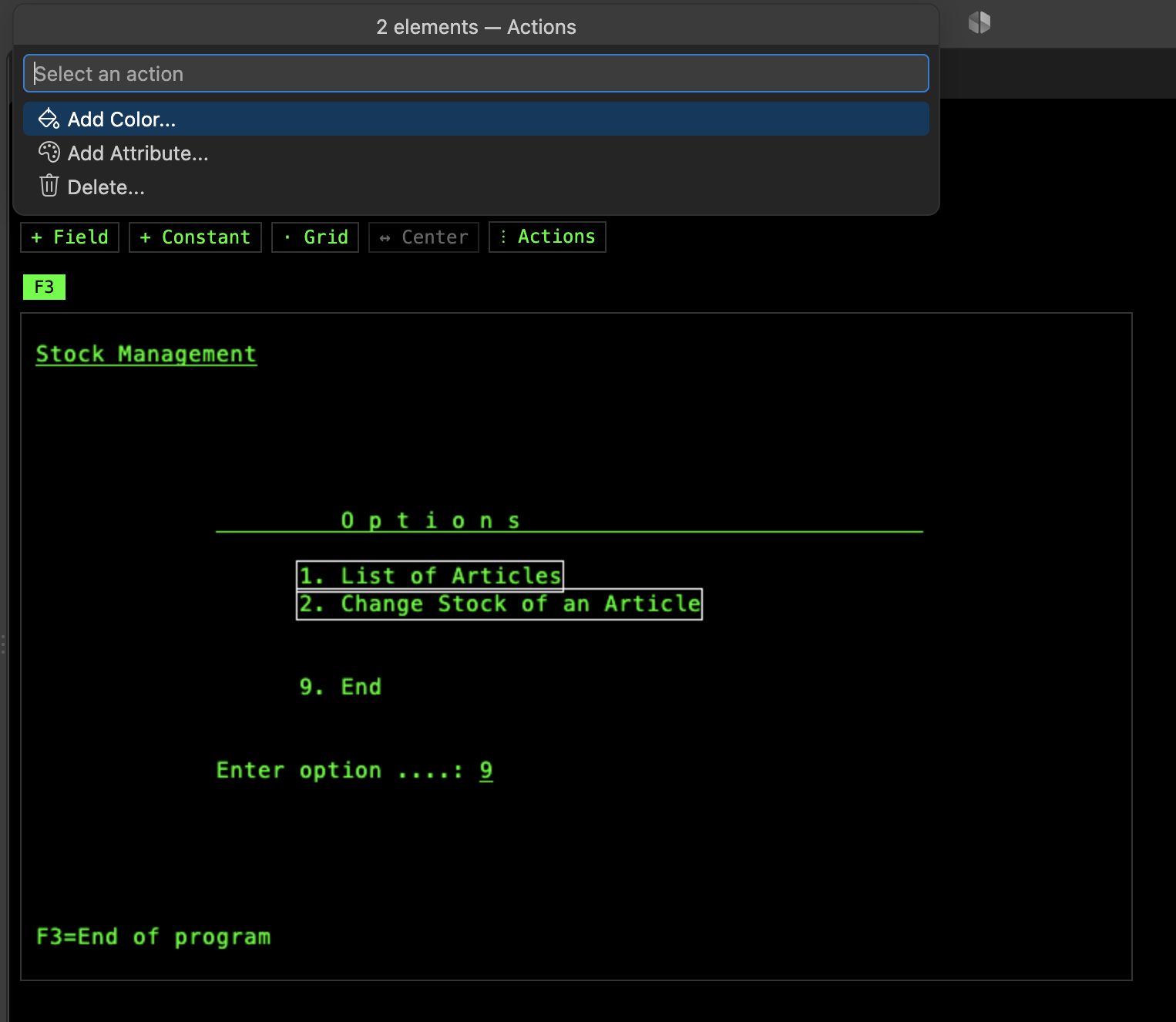
With a selection active, pressing Delete or Backspace deletes it directly — same confirmation dialog as the menu’s own Delete, without having to open the menu first.
Right-clicking a field or constant opens this same ⋮ Actions menu directly, instead of the browser’s native context menu — selecting it first (replacing the current selection) if it wasn’t already selected; right-clicking one that’s already part of a multi-selection keeps the whole group.
Simulating indicators
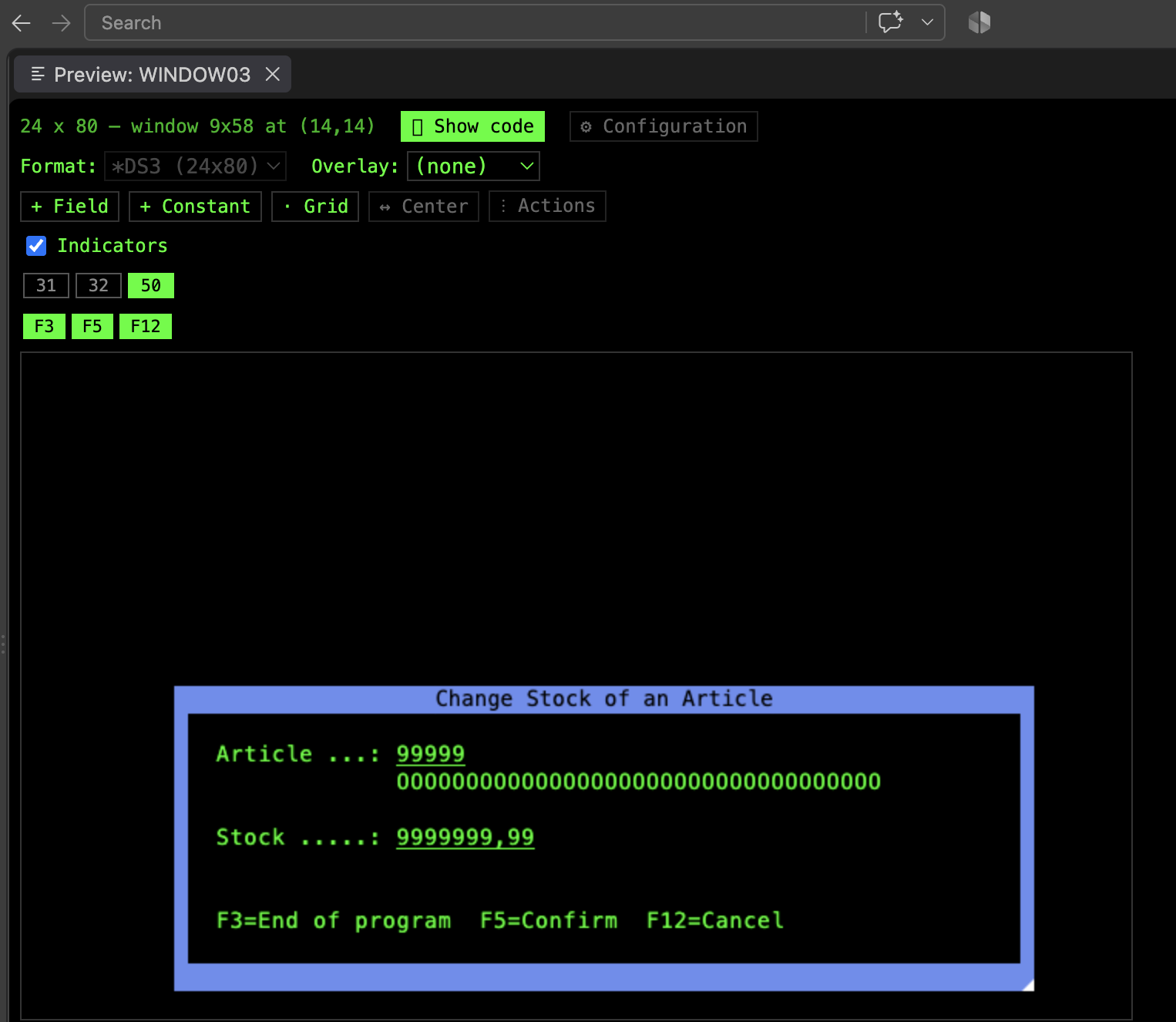
Section titled “Simulating indicators”Toggle Indicators in the toolbar to simulate indicators on/off and preview conditional fields, constants, and attributes without compiling or connecting to a 5250 session. See Indicators and Conditions for how conditions are built.
The Indicators toggle, and the selected display format, persist when you switch which record is being previewed in the same panel.
Overlay
Section titled “Overlay”Overlay other records (dimmed) behind the one being previewed, to see how they compose — useful for checking a detail record against its header, a window against the record behind it, or a whole screen built from several records (a header, a footer, a “no records” format…).
Click the Overlay button in the toolbar to open the list of the file’s records and check the ones you want to see. When the file has more than 8 records, a filter box at the top narrows the list by name. The button shows the checked records, or (none).
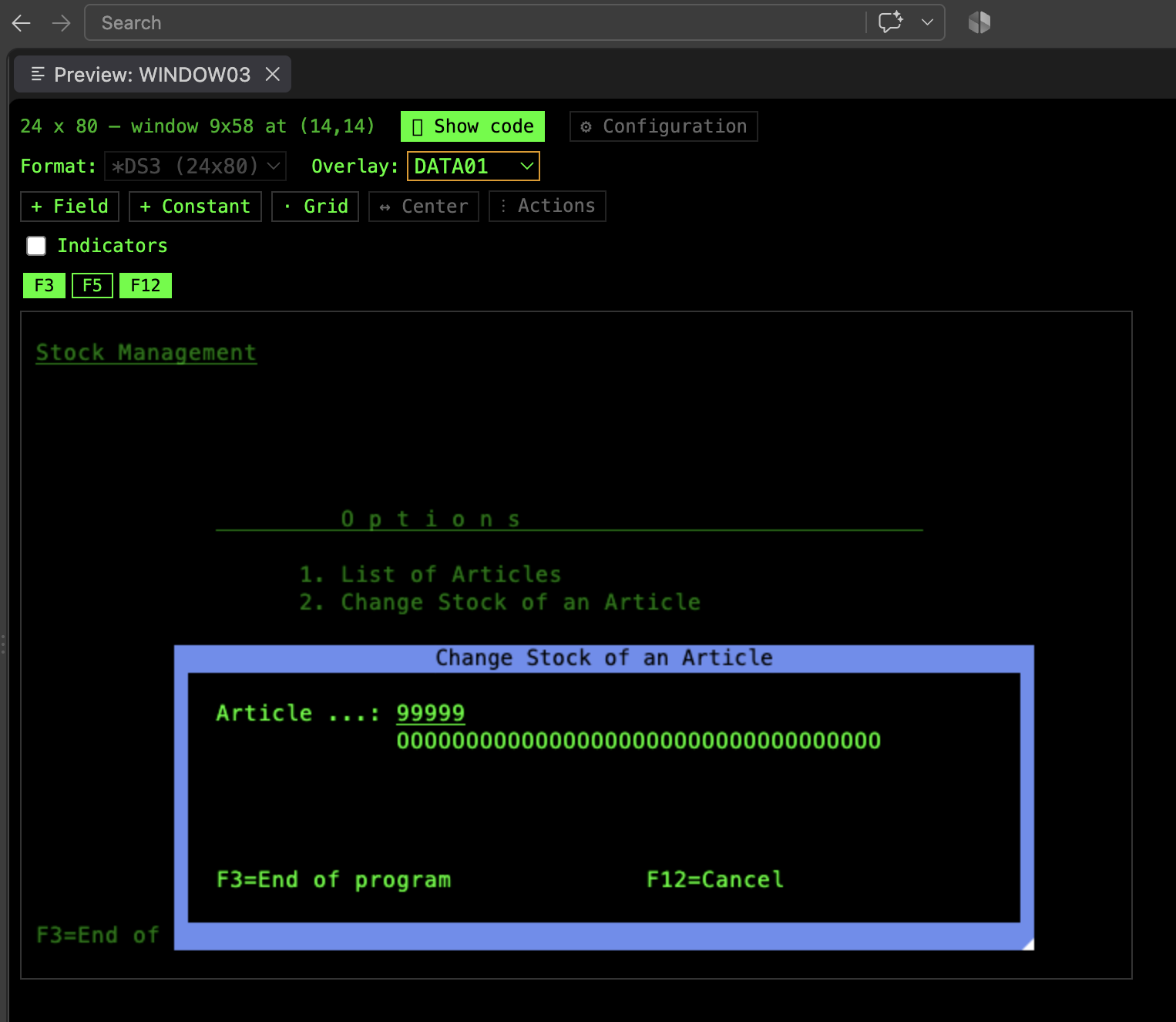
- The record being previewed is always drawn on top, at full intensity. Overlays are drawn dimmed behind it, in source order: each one over the ones before it.
- Checked overlays stay checked when you switch to another record of the same file, and are cleared when you preview a different file.
- Some records are checked on their own, and locked, so they can’t be unchecked by themselves:
- A subfile’s other half: the detail record while previewing its
SFLCTLheader, and the other way round. This also applies to a subfile record you check as an overlay, which brings its other half along. Unchecking the half you checked removes both. See Subfiles. - The record named in
WINDOW(record-name), since the window is built from it: it carries the window’s title, footer text and so on.
- A subfile’s other half: the detail record while previewing its
Both the subfile pairing and keeping overlays when switching records can be turned off in the ⚙ Configuration panel — see Configuration.
Double-click anywhere on a dimmed overlay record to switch the preview to it, the same as picking it in the tree. Works anywhere across the rows the overlay occupies, not just directly on one of its fields/constants. On a field or constant, its own record wins; on an empty spot where several overlays overlap, the one drawn on top wins.
Windows
Section titled “Windows”WINDOW records are drawn at their real screen position and can be resized/moved directly with the mouse. The window’s WDWTITLE is shown if present, including a second title on the bottom border (*BOTTOM). Windows shared via WINDOW(record-name) are supported.
- Click a window’s title to edit it.
- Hovering a window reveals its “⋮” actions menu and a one-click “center horizontally” icon.
An active ERRMSG() (or ERRMSGID() — see below) on a window shows on the window’s own reserved message line (its last content row) when the window doesn’t specify *NOMSGLIN — matching real DDS behavior — instead of always appearing at the bottom of the physical screen.
See Windows for the full reference.
Subfiles
Section titled “Subfiles”SFL/SFLCTL records show every SFLPAG row, and automatically preview their paired header/detail record. Detail rows can’t be dragged up over the header’s own content. A SFLCTL record’s SFLMSG() shows on the message line the same way ERRMSG() does (which still takes priority over it, matching the DDS reference), while SFLDSP is in effect. See Subfiles.
Field wrapping
Section titled “Field wrapping”A field coded with CNTFLD(n) wraps across multiple lines in the preview, n characters each, all starting at its original column — matching how RDi previews it.
A field with no CNTFLD() that’s simply too long to fit between its start column and the record’s (or window’s) right edge wraps automatically too, matching real DDS/STRSDA: it fills out the rest of the starting line, then continues at column 1 using the full line width on each following line, until its whole length is placed.
Function-key legend
Section titled “Function-key legend”A function-key legend (F3, F12, …) shows every command key available to the record being previewed — file-level, record-level, and (for a subfile) its SFL/SFLCTL pair’s own CAxx/CFxx keys, since both preview together as one screen. A key still shows even when its indicator condition isn’t currently met, so you can see it’s defined; it switches to solid/inverted styling when it’s actually active under the current simulated indicators.
HELP(), PAGEDOWN(), and PAGEUP() show in the same legend, labeled Help, Page Up, and Page Down — they’re dedicated keyboard keys rather than a numbered Fnn slot (PAGEDOWN/PAGEUP are DDS’s own names for ROLLUP/ROLLDOWN), so they’re listed after the numbered keys instead of trying to fit an Fnn label that doesn’t apply to them.
A key shows however it is coded: on its own (CF03, HELP), with a response indicator (CF03(03), HELP(83)), or with an indicator and a text (CF03(03 'Exit')). ROLLUP and ROLLDOWN show as Page Down and Page Up.
A subfile’s SFLDROP/SFLFOLD fold/truncate key, if declared, shows apart from the rest after a | separator, in blue — see Subfiles.
Multiple display sizes
Section titled “Multiple display sizes”For files with more than one DSPSIZ format (e.g. *DS3/*DS4), switch which one is being previewed from the toolbar. Window positions/sizes and conditioned elements are resolved for the selected format, and dragging/resizing/centering a window, or adjusting a subfile’s SFLPAG/SFLSIZ, only affects the size currently being previewed. See Multiple Display Sizes.
Numeric formatting
Section titled “Numeric formatting”The decimal point and thousands-separator convention used to preview EDTCDE()-edited numeric fields — US or European — is configurable from the ⚙ Configuration panel, either picked manually or fetched with one click from the connected IBM i’s QDECFMT system value. See Configuration.
An EDTCDE() shows the same on an input-capable field (usage I or B) as on an output one, as in STRSDA: a 6,2 field with EDTCDE(J) previews as 9.999,99- either way (European convention).
The user-defined edit codes, EDTCDE(5) to EDTCDE(9), are previewed once their definitions have been fetched from the IBM i — see User-defined edit codes.
Time fields
Section titled “Time fields”A T (time) field previews with its digit positions and separator laid out per its TIMFMT()/TIMSEP() — *HMS’s separator can be overridden by TIMSEP() (defaulting to :), while *ISO (the default when TIMFMT() isn’t coded), *USA, *EUR, and *JIS each use their own fixed one. *USA’s trailing AM/PM half has no real value to preview, so it previews as ordinary placeholder digits rather than guessing which.
Default values
Section titled “Default values”An output-capable (O/B) field carrying an active DFTVAL('value') previews with that literal text — padded or truncated to the field’s width — instead of a generic placeholder, matching what IBM i itself displays on the first output operation.
Focus mode
Section titled “Focus mode”Focus maximizes the preview so it fills the editing area, hiding the DDS source editor beside it. Show code brings the source editor back.
Staying in sync
Section titled “Staying in sync”The preview stays in sync with the schema tree selection in both directions: selecting an element in the tree highlights it in the preview, and vice versa.