Schema Tree
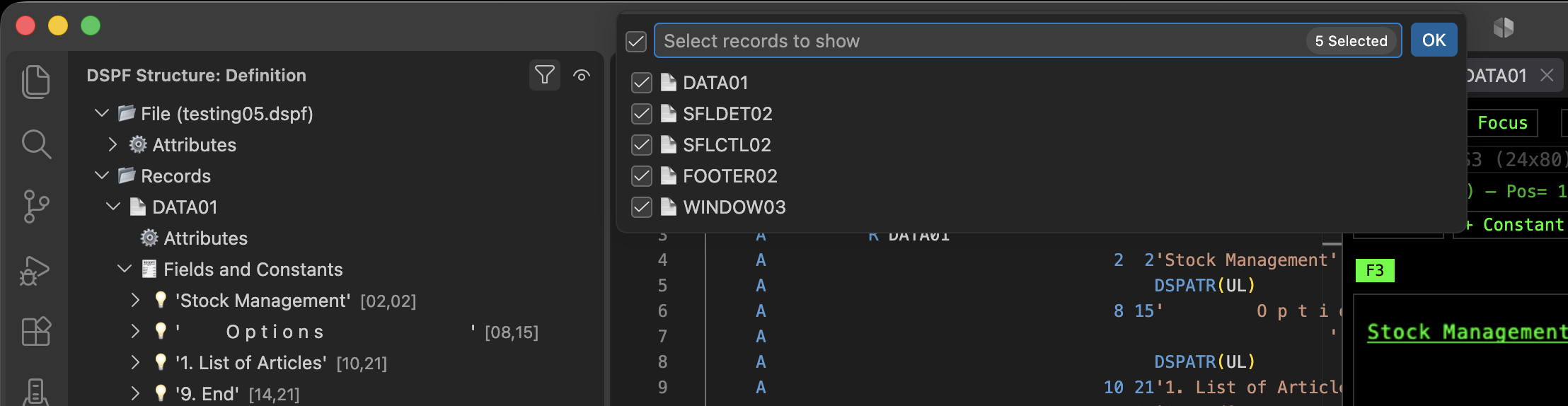
The DSPF STRUCTURE panel, in the Explorer view, shows a live tree of the display file’s structure. It updates automatically as you edit the source, and stays in sync with the Screen Preview selection in both directions.
The tree has two levels: File and Records, with Constants, Fields, and Attributes nested under each record.
File level
Section titled “File level”Shows the display file’s own attributes — display size, command keys defined at file level, and (if present) more than one DSPSIZ format.
Right-click the file node for:
- Create new records.
- Assign command keys — see Command Keys. A key number already used at the other level (file vs. record) is excluded, so you can’t end up with the same key defined as both
CAandCF. - Add Display Size — adds a second standard screen size (
*DS3/*DS4) to a file that currently declares only one. See Multiple Display Sizes. - Reference File — adds, changes, or removes the file-level
REFkeyword. See Referenced Fields.
Records level
Section titled “Records level”Right-click the records list for:
- Create new records.
Each record node shows its own record-level attributes, and lists its constants and fields underneath. Right-click a record for:
- Add constant / Add field / Remove field
- Copy record / Delete record
- Add buttons — constants that trigger record commands. See Records.
- Assign command keys — same exclusion rule as at file level, see Command Keys.
- Add / Remove / Change indicators — see Indicators and Conditions.
- Resizing (window records only) — aware of every declared display size, resizing all of them at once.
- Change Window Title (window records only) — targets the size currently being worked on, when the record declares more than one.
- Sort elements.
- Preview Screen Layout — also available as an inline button on the record. See Screen Preview.
Constants
Section titled “Constants”Each constant shows its text, position (row/column), indicators, and attributes. Right-click a constant for:
- Edit constant.
- Copy constant — to the same record or a different one.
- Remove constant.
- Center constant on screen.
- Change position — absolute, or relative to an existing constant.
- Apply colors/attributes.
- Add / Remove / Change indicators — including more than 3 ANDed indicators (up to DDS’s limit of 9, spilling onto continuation lines automatically) and OR’d conditions. See Indicators and Conditions.
- Fill constant with characters.
Fields
Section titled “Fields”Each field shows its name, length, type, position (row/column), and flags such as referenced or hidden. Indicators and attributes are expandable when present — a field or constant with neither shows as a plain leaf, with no expand arrow. An OR’d condition is grouped into its ANDed sub-conditions (Group 1 (AND) / OR / Group 2 (AND) / …) instead of a flat list. Hovering a conditioned field, constant, or attribute shows the full condition (e.g. 51 AND NOT 61 AND 53 OR 52) as a tooltip. Hovering a referenced field shows where its definition comes from (e.g. UPDUSR in *LIBL/HTPFREF (file-level REF)).
Right-click a field for:
- Edit field.
- Copy field — to the same record or a different one.
- Remove field.
- Center field on screen.
- Change position — absolute, or relative to an existing constant/field.
- Apply colors/attributes.
- Add validity checks.
- Add editing keywords.
- Add error messages.
- Add / Remove / Change indicators — same AND/OR support as constants. See Indicators and Conditions.
- Resolve Referenced Field (referenced fields only) — see Referenced Fields.
A hidden (H), message (M), or program-to-system (P) field is never displayed, so the options that only apply to a displayed field aren’t offered for it: centering, change position, colors/attributes, validity checks, editing keywords, and error messages. Per the DDS reference, message and program-to-system fields only allow the ALIAS, INDTXT, OVRDTA (message only), REFFLD, and TEXT keywords. A hidden field has no position and is neither an input nor an output field.
Attributes
Section titled “Attributes”Right-click an attribute (a DSPATR-style flag on a field or constant) for:
- Add / Remove / Change indicators — same AND/OR support as fields and constants.
- Remove attribute.
Filtering the tree
Section titled “Filtering the tree”Use Filter Elements to narrow the tree to a search term, and Show All Elements to clear the filter again.