
Subfiles
Subfile (SFL/SFLCTL) records are recognized and rendered specially in the Screen Preview.
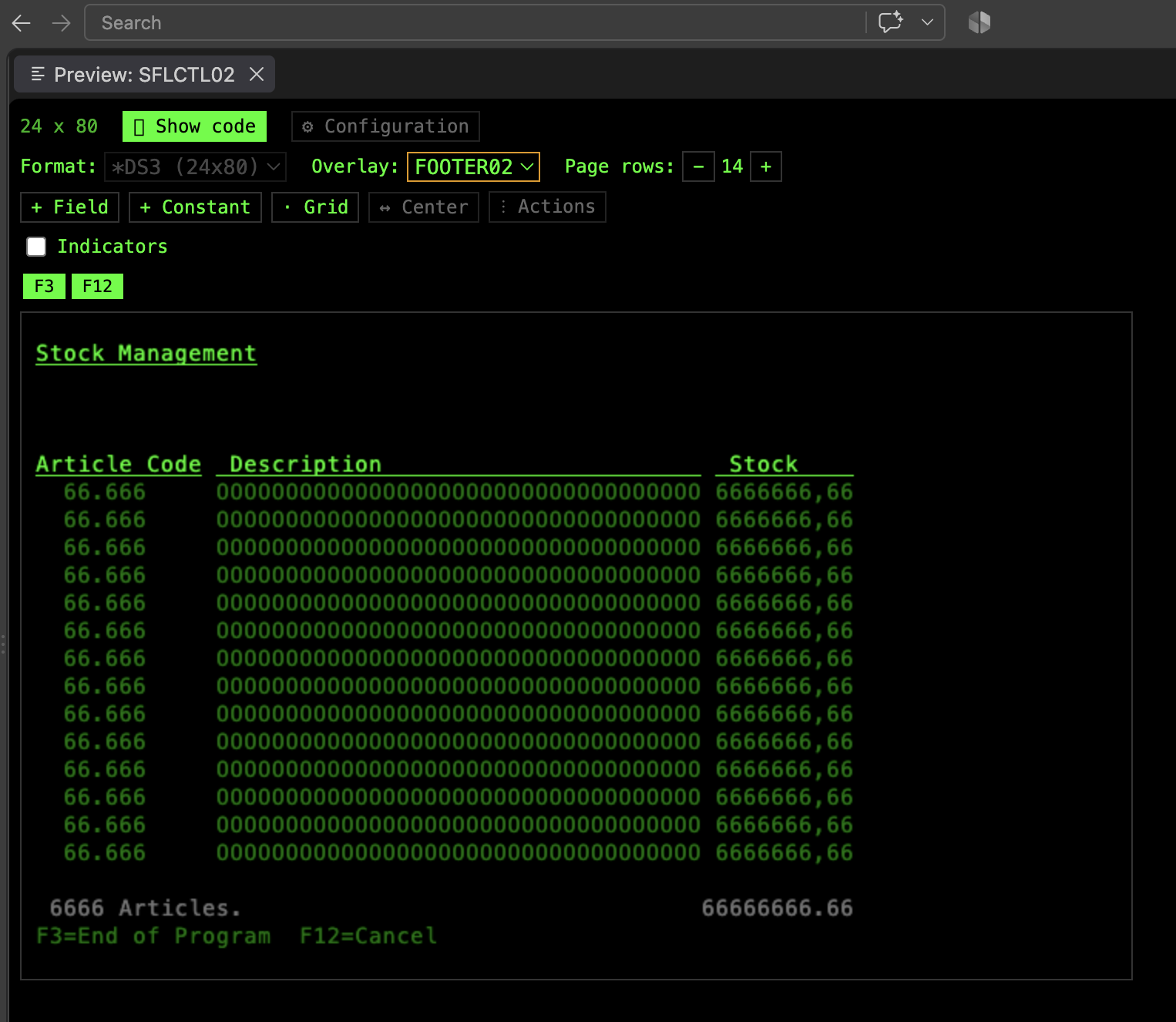
Subfile page rows
Section titled “Subfile page rows”The preview shows all SFLPAG rows for the subfile, and pairs the subfile detail record with its SFLCTL header record so both preview together as they’d actually appear on screen. The other half appears checked and locked in the Overlay list, and checking a subfile record as an overlay brings its other half too.
To preview one half without the other (for example, a header with a “no records” format instead of its detail rows), turn off Show a subfile’s detail and control records together in the ⚙ Configuration panel — see Configuration.
Jumping between header and detail
Section titled “Jumping between header and detail”Double-click anywhere on the dimmed counterpart — the header while previewing the detail record, or vice versa — to switch the preview to it. See Overlay.
Dragging detail rows
Section titled “Dragging detail rows”Detail rows can’t be dragged up over the header record’s own content, keeping the preview physically consistent with how the subfile actually renders. The same boundary applies when adding a new field or constant to the detail record — whether by clicking in the preview or via the tree’s Add field/Add constant — so it can’t be placed on top of the header either.
Fold and truncate (SFLDROP/SFLFOLD)
Section titled “Fold and truncate (SFLDROP/SFLFOLD)”When the SFLCTL record declares SFLDROP(CAnn|CFnn) or SFLFOLD(CAnn|CFnn) — the key that lets the workstation user switch a multi-line subfile record between a compact, one-line-per-record “truncated” form and its full “folded” form — that key shows in the preview’s function-key legend on its own, after a | separator, in blue. Filled blue means the subfile is currently folded; outlined means truncated.
- Previewing the
SFLCTLheader record: the key is clickable and simulates the real 5250 toggle. It starts in whichever state the DDS keyword declares — truncated forSFLDROP, folded forSFLFOLD(folded wins if both are coded on the same key, per the DDS reference) — and switches on click. While truncated, the subfile shows proportionally more page rows thanSFLPAG, since each record only takes one line instead of several — matching how DDS itself describes the truncated form. - Previewing the subfile detail record itself: always shown fully folded, so every field and constant stays visible and editable at a glance. The key shows disabled here — toggling the detail’s own preview to truncated would hide most of its fields, which isn’t useful while actively editing it.
To see the truncated form or try the toggle, preview the header record rather than the detail record.
Assigning SFLDROP/SFLFOLD
Section titled “Assigning SFLDROP/SFLFOLD”Right-click a SFLCTL record and choose Subfile Drop/Fold for a summary menu listing SFLDROP and SFLFOLD, each showing its current command key (and any conditioning indicator) or “(not set)” — same menu style as Editing Keywords. Pick a row (or its change button) to assign it to a CAnn/CFnn key, optionally conditioned by an indicator, or use its own remove button to take it off entirely.
Adding a commands record
Section titled “Adding a commands record”Right-click a SFLCTL record and choose Add Commands Record to create a new, empty record right after it for the subfile’s function-key legend (e.g. “F3=Exit”, “F12=Cancel”) — conventionally kept separate from the SFLCTL itself.
If the SFLCTL declares its own window directly (WINDOW(startRow startCol rows cols)), that window — along with its WDWTITLE()/WDWBORDER() — is moved onto the new record, and the SFLCTL is left with a WINDOW(newRecordName) reference, since only the record that owns the window actually renders those keywords. See Add Commands Record and Windows.
After the record is created, use Add Constant (or Add Buttons) on it to add the function-key texts.
Subfile messages
Section titled “Subfile messages”A SFLCTL record’s SFLMSG('text' indicator) is shown on the preview’s message line when its indicator is toggled on in the Indicators simulation, the same way a field or record’s ERRMSG() is — see Error messages. Per the DDS reference, an active ERRMSG() always takes priority over SFLMSG(), and SFLMSG() only takes effect while SFLDSP is itself in effect.
Multiple display sizes
Section titled “Multiple display sizes”A subfile’s SFLPAG/SFLSIZ can differ per DSPSIZ format. When previewing a file with more than one format, adjusting a subfile’s page size only affects the format currently selected in the preview. See Multiple Display Sizes.